API Endpoint
All POST requests should be sent as form data to:
https://api.pushifi.com
This is the endpoint for sending push notifications to the Pushify app.
Basic Message Structure
The simplest way to send a notification:
POST to:
https://api.pushifi.comForm Data:
apikey=YOUR_API_KEY
message=This is the main message content that will be displayed.
Required Fields
| Field | Type | Description |
|---|---|---|
apikey |
String | This is the Pushify API key available on the setup page required to send a message to a device. |
message |
String | The main content of the message. |
msg |
String | The main content of the message. Same as message but shorter for convenience. |
Optional Fields
| Field | Type | Default | Description |
|---|---|---|---|
sound |
String | "default" |
Sound to play when notification is received. Use null for silent notifications. |
category |
String | "general" |
Category to group messages. Used for filtering in the app. |
icon |
String | "general" |
Allows you to include an icon displayed beside the category. A full list of icons can be found at Material Design Icons. |
categoryColor |
String | null |
This option allows you to set the background color of the category. The foreground color will always be white. |
imageUrl |
String | null |
URL of a publicly available image to display with the notification. |
audioFileUrl |
String | null |
URL of a publicly available audio file allowing the recipient to play it. |
details |
String | null |
Allows you to include more details regarding the message. |
tableData |
String | null |
Allows you to include structured table data. For example: Priority=Normal,Category=Networking |
buttons |
String | null |
Allows you to include action buttons with your notification that redirects the user to a URL associated with the button. Example: Google=https://google.com,Apple=https://apple.com |
percent |
Number | null |
Allows you to indicate what percent complete an associated task is (0-100). |
referenceId |
String/Number | null |
When included, any notification with this ID will be updated instead of creating a new one. Useful for updating progress or message details. |
Form Related Fields
| Field | Type | Default | Description |
|---|---|---|---|
form |
String | null |
A URL-encoded JSON string containing form fields. Example: [{"name":"firstname","type":"text","label":"First Name","required":true},{"name":"email","type":"text","label":"Email","required":true}] |
formTitle |
String | null |
The title of the form. |
formApiKey |
String | null |
An API Key if your form requires one for security. |
formUrl |
String | null |
The URL to post the form data to. |
Fix Bugs In Real Time
When bugs happen (and they always will), this feature allows you not only to get notified but to send specific information about the bug along with your notification to help you quickly diagnose and fix issues. We provide a Python application that can be installed on your server, allowing you to edit and save source code directly from your notification.
Download the repository here : https://github.com/RogerVortext/editor
How It Works
Receive Error Notification
When an error occurs in your application, you receive a detailed notification with error information, stack trace, and affected code file.
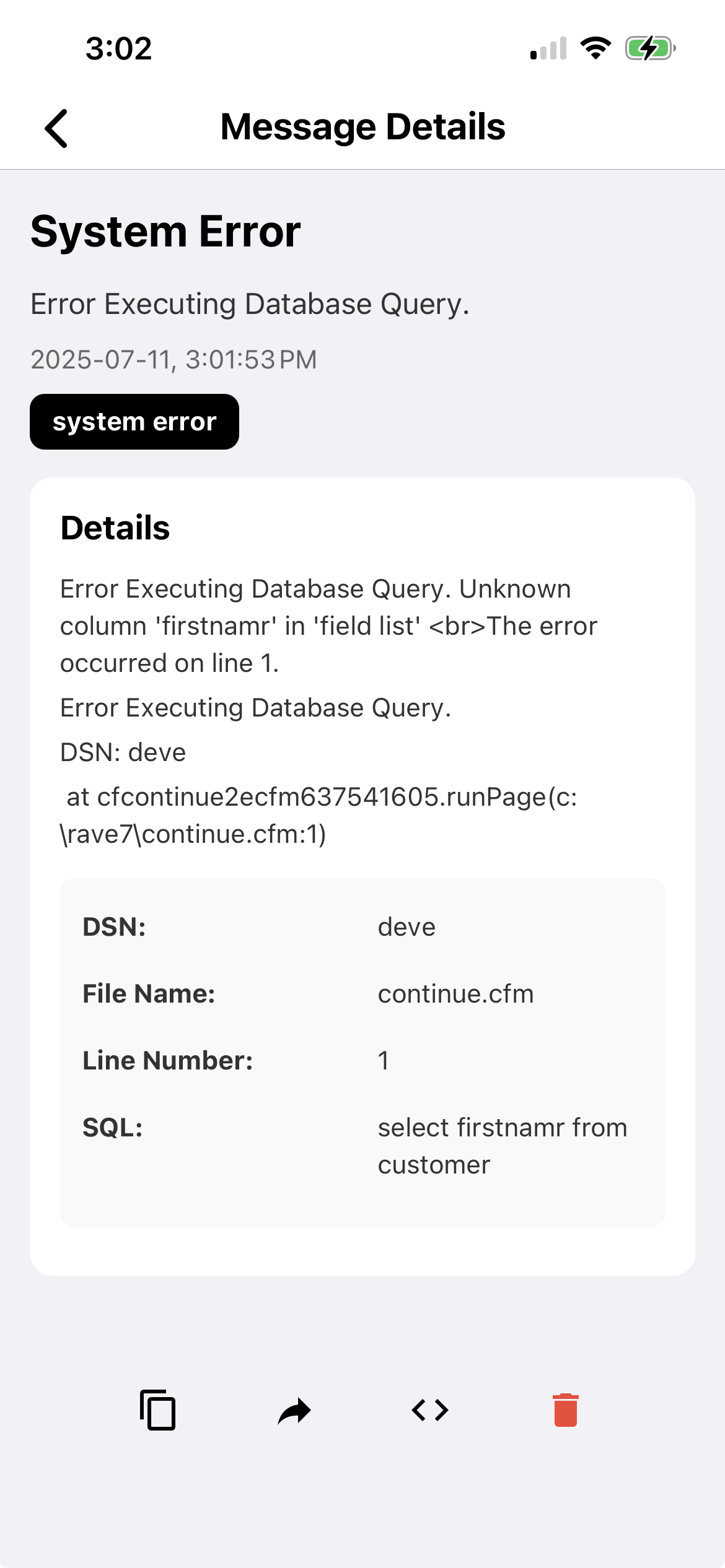
Error notification with structured data
View and Edit Code
View and click Edit File to open the file in the built-in code editor to view the problematic file.
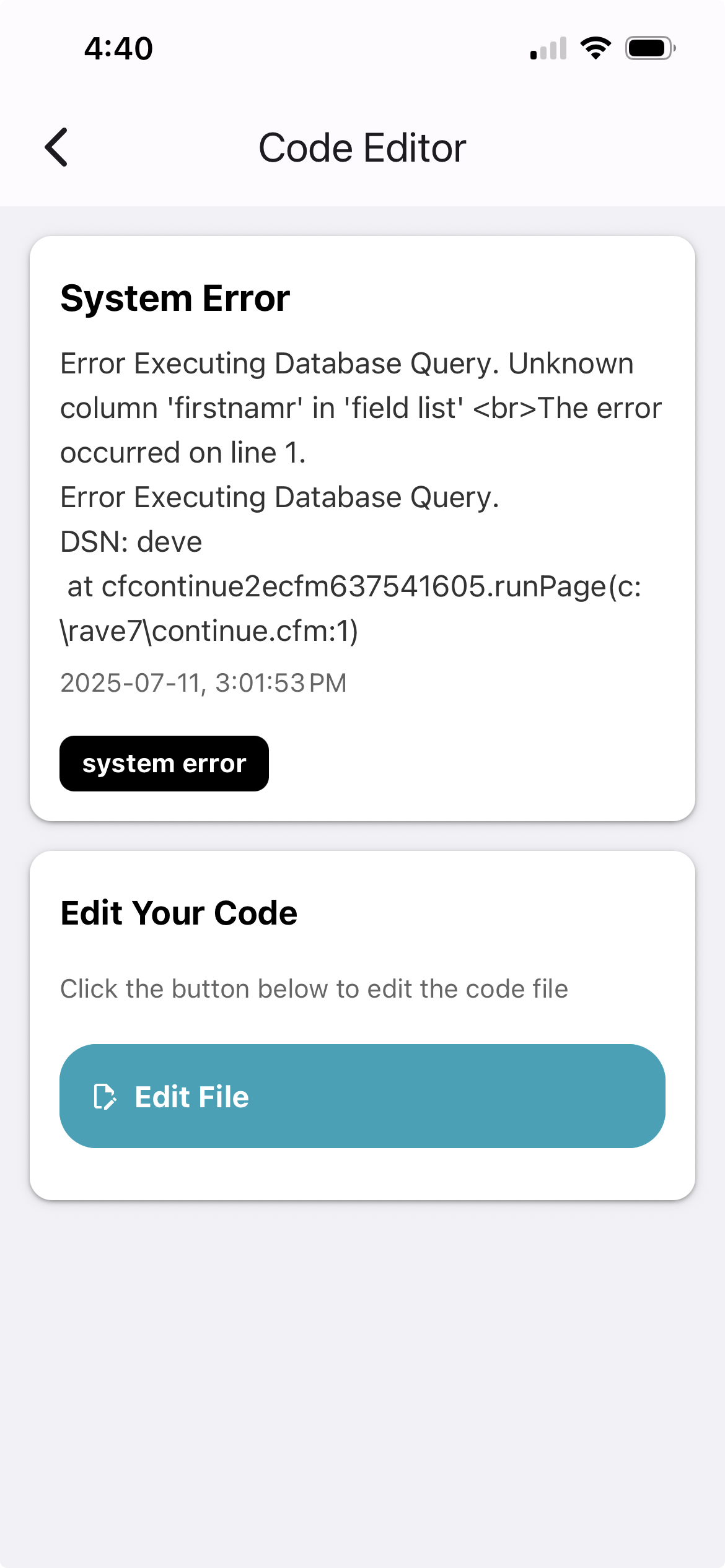
Code editor with syntax highlighting
Save and Deploy
View and/or fixing the issue, click Save Changes to save your changes directly to the server. The Python App handles updating the file.
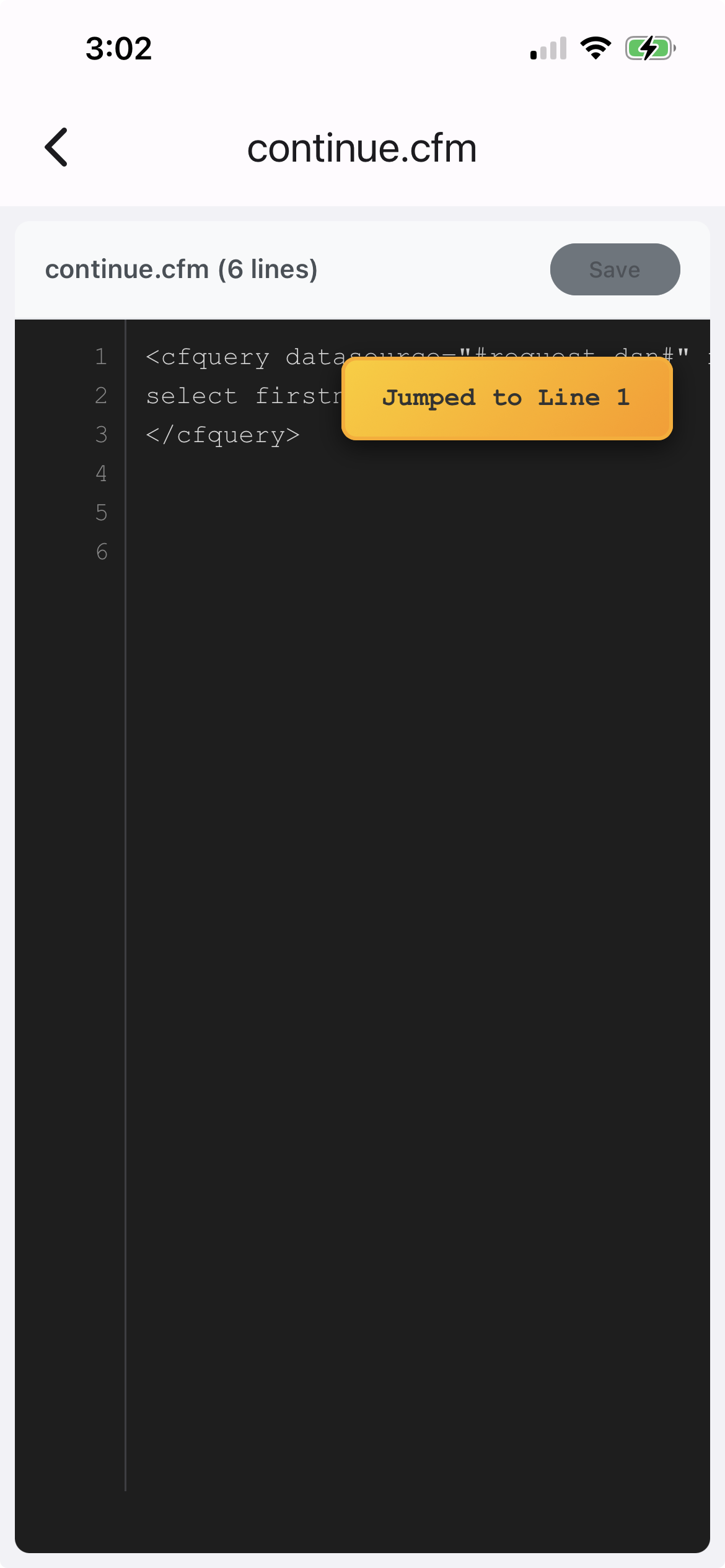
The editor automatically jumps to the error line number.
URL Setup
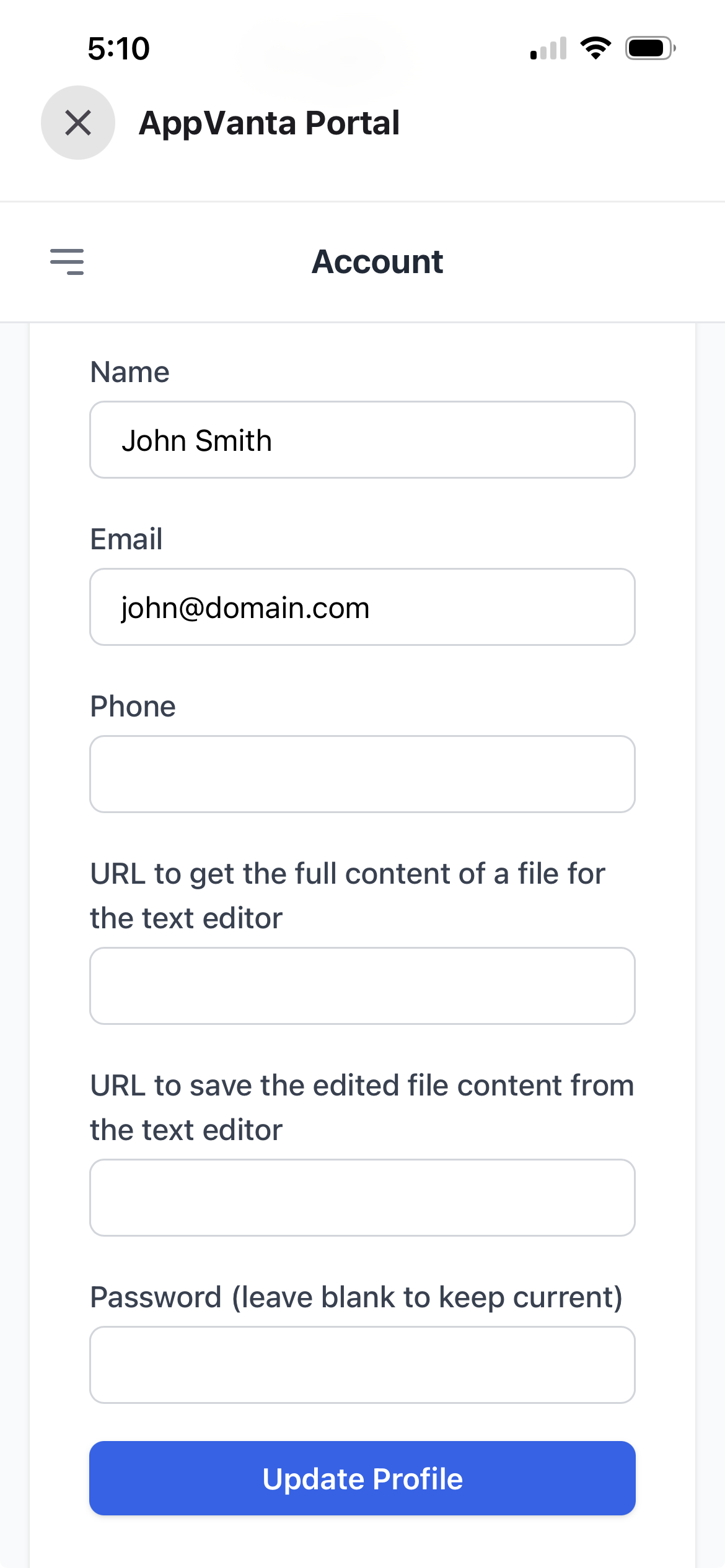
Setup your URL's where the pushifi python app is installed to edit your files in the AppVanta portal accessible from the setup area of the Pushify App.
| Field | Type | Default | Description |
|---|---|---|---|
editcode |
Boolean | false |
Indicates this message should allow source code editing with the built-in editor. When set to true, the notification will include an interface for viewing and editing source code. |
tableData |
String | null |
Use thi parameter to include specific details about the error in a table format for easy reading. Format as key-value pairs separated by commas. Example: ErrorType=NullReference,File=app.js,Line=42,Function=processData |
Setup Requirements
To use the code editing feature, you'll need to:
- Install our Python agent on your server (
pip install pushifi-agent) - Configure the agent with your API key and server paths
- Set appropriate file permissions for the directories you want to be editable
For detailed setup instructions, see our Server Setup Guide.
Example Requests
Basic Message
POST to:
https://api.pushifi.comForm Data:
apikey=YOUR_API_KEY
title=Hello!
message=This is a test message
sound=alert
Shortcut Option (Great for CURL requests)
Note: Use underscores instead of spaces to prevent issues with URL encoding.
POST to:
https://api.pushifi.comForm Data:
apikey=YOUR_API_KEY
message=Title~message_goes_here~message_details
Message with Image and Category
POST to:
https://api.pushifi.comForm Data:
apikey=YOUR_API_KEY
title=Check this out!
message=Here's an interesting image for you
category=Support
imageUrl=https://example.com/example.jpg
Message with Action Buttons
POST to:
https://api.pushifi.comForm Data:
apikey=YOUR_API_KEY
title=New Message
message=You have a new message from John
buttons=Google=https://google.com,Apple=https://apple.com
Message with a Form
POST to:
https://api.pushifi.comForm Data:
apikey=YOUR_API_KEY
message=Please fill out this form.
form=[{"name":"firstname","type":"text","label":"First Name","required":true},{"name":"email","type":"text","label":"Email","required":true}]
formTitle=Contact Information
formUrl=https://your-api.com/submit-form
Bug Fix Notification with Code Editor
POST to:
https://api.pushifi.comForm Data:
apikey=YOUR_API_KEY
title=Critical Error Detected
message=NullReferenceException in user authentication module
category=Error
priority=high
editcode=true
tableData=ErrorType=NullReference,File=auth.js,Line=157,Function=validateUser,UserID=45892
details=User authentication failed when processing login request. The user object was null when attempting to access the 'email' property.
Best Practices
- URL Encode All Values: Ensure all form values are properly URL-encoded before sending.
- Handle API Keys Securely: Your API Key is always required to send a message. Keep it in a secure place as anyone with this key can send a message using your account.
- Use Categories: If you do not specify a category, it will default to 'General'.
- Respect User Preferences: Allow users to opt-in/out of different notification types.
- Rate Limiting: Be aware of rate limits when sending large volumes of notifications.
- Testing: Always test your form data submission with a small message before sending to multiple recipients.
Security Considerations
- Validate Input: Always validate form submissions on the server.
- Use HTTPS: Ensure your webhook endpoint uses HTTPS.
- Authentication: Implement authentication for form submission endpoints using the formApiKey option.
- Rate Limiting: Protect your endpoints from abuse with rate limiting.
- Data Validation: Sanitize and validate all user input.
- Error Handling: Provide meaningful error messages without exposing sensitive information.
Troubleshooting
Message not received
- Verify the API Key is valid
- Ensure the device has internet access
- Check that all required form fields are included
No sound
- Check if the app has notification permissions
- Verify the device isn't in silent mode
- Ensure the sound parameter matches an available sound file
Image not displaying
- Ensure the image URL is accessible on the Internet
- Verify the URL returns the correct content type
- Check for any URL encoding issues
Form data issues
- Ensure JSON strings are properly URL-encoded
- Verify all required form fields are included
- Check for special characters that might need encoding
Delayed delivery
Some delays are normal, especially when the device is in battery saver mode.